
Workflow Automation Checklist for Small Businesses

Kathy Prince
Automation is no longer optional for small businesses in 2026 - it’s essential for saving time, reducing errors, and staying competitive.
On average, small business owners lose 20–30 hours weekly on tasks that automation could handle, like invoice processing, lead follow-ups, and appointment scheduling. These inefficiencies cost businesses thousands annually. Automation not only saves time but also reduces operational errors by 70% and boosts ROI by 240%.
Here’s how to start:
Document Your Processes: Map workflows and identify repetitive, time-consuming tasks.
Set Clear Goals: Define measurable targets like cutting response times or saving hours.
Start Small: Automate basic tasks (e.g., email filters, reminders) to save 5–10 hours weekly.
Integrate Systems: Connect tools like CRMs, accounting software, and email platforms to eliminate manual data entry.
Refine and Expand: Track performance, fix issues, and scale automation to more complex workflows.
With upfront costs between $2,000–$10,000, most businesses see payback within 60–90 days. The key is starting with clear documentation, simple tasks, and regular reviews to ensure everything runs smoothly.
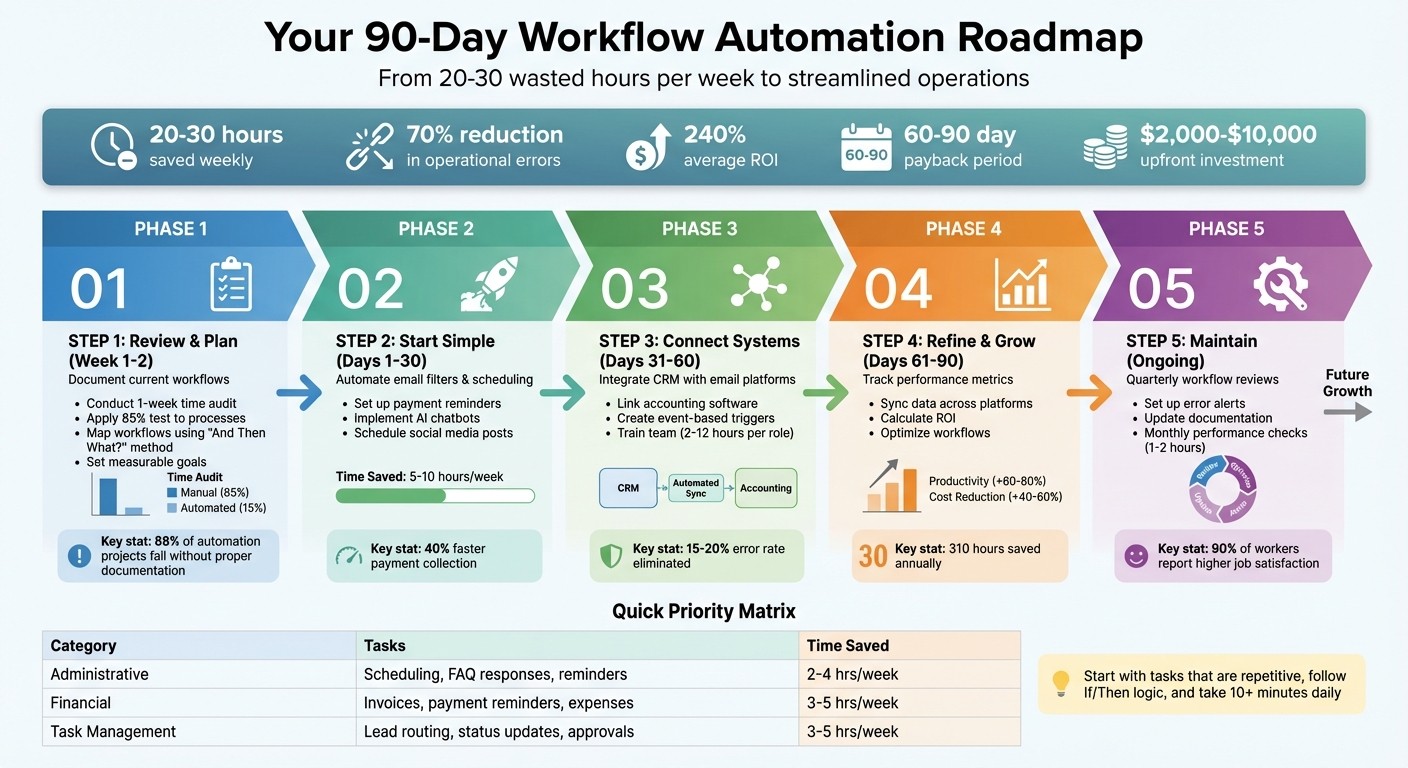
5-Step Workflow Automation Implementation Timeline for Small Businesses
The Beginner's Guide to Automating Your Business
Step 1: Review Your Current Processes and Plan Your Approach
Before diving into automation, take a step back and document your current business processes. Why? Because nearly 88% of automation projects fail, not due to faulty technology, but because businesses skip this critical step. Without a clear understanding of your workflows, automation can amplify existing inefficiencies and errors.
"The tool is almost never the problem. The businesses that fail at automation fail before they ever pick a platform."
Justin Dews, Partner, PathOpt
The key takeaway? Start by documenting your workflows. This initial effort, which might take one to two weeks, ensures your automation projects have a solid foundation. A well-documented process allows you to pinpoint automation opportunities accurately, reducing the risk of missteps.
Map Out Your Current Workflows
The first step in documenting your workflows is conducting a one-week time audit. Use a spreadsheet or time-tracking app to log every detail of your team's daily activities. Be thorough - include informal steps and exceptions that might not be part of the official process.
A great technique for this is the "And Then What?" method. Interview team members about their tasks, and after each step, ask, "and then what?" This helps uncover decision points, handoffs, and delays that standard documentation might miss. For software-related tasks, consider recording screen shares to capture overlooked details.
Next, apply the 85% test: if a new hire can't perform the task correctly 85% of the time using your documentation, it's time to refine it. Fix inconsistencies and standardize the process before automating. Automation tools can only handle predictable workflows - if your process varies too much, automation won't work reliably.
Once your workflows are mapped and refined, you can start identifying tasks that are prime candidates for automation.
Find Tasks Worth Automating
Not all repetitive tasks are worth automating. Focus on tasks that are frequent, follow consistent steps, and consume significant time or lead to costly errors.
How to prioritize tasks:
Look for repetitive, time-consuming activities. For instance, five daily tasks that take 10 minutes each are more impactful to automate than a single 30-minute weekly task.
Tasks built on simple "If/Then" logic (e.g., "If X happens, then do Y") are ideal for automation tools.
Manual data entry is a prime example. With an error rate of 15–20%, it can cost businesses 10–25% in revenue due to misdirected efforts. Other strong candidates include invoice processing, lead follow-ups, and appointment reminders. Quick response times are crucial - leads contacted within 5 minutes are 100× more likely to connect than those reached an hour later.
Here’s a quick checklist to evaluate tasks:
Audit Question | Purpose |
|---|---|
Is it repetitive? | Identifies tasks that occur more than twice a week |
Is the process defined? | Ensures the steps are consistent and repeatable |
Does it touch multiple systems? | Highlights opportunities to connect tools like CRMs and communication platforms |
Is human judgment required? | Determines if decisions can be replaced with simple rules |
What is the error cost? | Prioritizes tasks where mistakes have significant consequences |
Define Your Automation Goals
Setting clear goals is crucial. Vague objectives like "save time" won't help you measure success. Instead, define specific, measurable targets for each workflow you plan to automate. For example, aim to "reduce invoice processing time from 4 hours to 30 minutes per week" or "cut lead response time from 2 hours to 5 minutes".
To evaluate the financial viability of automation, use this formula:
(Hours saved per month × Hourly rate) − Monthly tool cost.
Most small business automation projects cost between $2,000 and $10,000 upfront, with payback periods typically ranging from 60 to 90 days. If the numbers don’t work out, either the task isn’t worth automating or the process needs further refinement before automation.
Finally, document your baseline performance. Without knowing how long tasks currently take or the frequency of errors, you won’t be able to measure the success of your automation efforts. Tracking the right metrics from the start can lead to impressive results - many small businesses report an average ROI of 240% when automation is implemented thoughtfully.
Step 2: Start with Simple Tasks (Days 1–30)
The first month of automation is all about quick wins - those small tasks that are easy to set up but deliver immediate value. Did you know that small business owners often lose over 20 hours each week on manual work? The goal here isn’t to automate everything overnight. Instead, it’s about building momentum by showing how automation can save time and effort right away.
Start with simple, built-in features of the tools you already use - things like email filters, scheduling links, and automated reminders. These are free to set up and can save you 2–4 hours per week almost instantly. By focusing on these early successes, you’ll gain the confidence to tackle more complex automations down the road.
Automate High-Volume, Repetitive Tasks
To figure out where to start, prioritize tasks based on how often they’re done and how much time they take. For instance, a 10-minute task that’s repeated five times daily (50 minutes total) is a better candidate for automation than a 30-minute task done once a week (30 minutes total). Look for repetitive processes that follow clear rules and don’t require creative decision-making.
Automate Daily Administrative Work
One of the easiest wins is automating meeting scheduling. Tools like Calendly or Cal.com let clients book appointments based on your real-time availability, cutting out the endless back-and-forth emails. Setup takes just 30–45 minutes, and this change alone can save 2–3 hours per week for most small businesses.
Next, tackle email management. Use Gmail or Outlook filters to automatically organize, archive, or respond to common inquiries. For website visitors, consider adding an AI chatbot to handle basic questions and collect contact details 24/7.
Social media is another area ripe for automation. Tools like Buffer or Hootsuite allow you to plan and schedule an entire month’s worth of posts in one sitting. Instead of scrambling daily to post content, spend 60–90 minutes once a month to get it all done.
Simplify Financial Tasks
Once you’ve streamlined communications, shift your focus to financial operations. Start with invoice generation. By connecting your payment processor (like PayPal or Stripe), you can automatically create and send invoices the moment a transaction occurs. No more manual data entry or delays in sending out bills.
Payment reminders are another must-have. Set up automated follow-ups to remind clients 3, 7, and 14 days after an invoice is overdue. Businesses using these systems collect payments 40% faster on average, improving cash flow without awkward collection calls.
For expense tracking, sync your bank account with your accounting software. Many modern tools use AI to automatically categorize transactions, cutting the cost of processing each invoice from $30 to just $5 - a staggering 83% reduction. Employees can even snap photos of receipts with their phones, letting the software handle the rest - no manual entry required.
Improve Task Management
Automation can also make task management a breeze. For example, tools like Trello’s "Butler" feature can assign incoming tasks to team members in a round-robin style, ensuring a balanced workload without requiring a manager to step in.
Set up recurring tasks for things like weekly reports, monthly inventory checks, or quarterly reviews. Instead of relying on memory, let the system generate these tasks on schedule. This ensures nothing important gets overlooked.
Status notifications are another helpful tool. For instance, you can trigger Slack or email alerts when a project moves to a new stage, like "Ready for Review" or "Completed." Automated reminders can also dramatically reduce appointment no-show rates, from the typical 12–18% down to just 3–6%, saving both time and revenue.
Automation Category | Priority Tasks (Days 1–30) | Estimated Time Saved |
|---|---|---|
Administrative | Appointment scheduling, FAQ responses, meeting reminders | 2–4 hours/week |
Financial | Invoice generation, payment reminders, expense tracking | 3–5 hours/week |
Task Management | Lead routing, status updates, internal approval workflows | 3–5 hours/week |
To make sure everything runs smoothly, test new automations alongside your manual processes for at least a week. This parallel testing helps you catch any errors and ensures a seamless transition.
Step 3: Connect Your Systems and Expand (Days 31–60)
Now that you’ve got the basics down, it’s time to take things up a notch. By linking your business tools, you can create a seamless flow of information, eliminating the hassle of manual data entry or outdated spreadsheets. Imagine a system where your CRM, accounting software, email platform, and other tools all work together - effortlessly.
Link Your Business Tools Together
First, identify the bottlenecks in your current setup. Where does data tend to get stuck? Common trouble spots include manually transferring leads from web forms to your CRM, syncing customer data between your email platform and accounting software, or updating project management tools when a deal closes. These repetitive tasks are ripe for automation.
Using the workflows you’ve already mapped, start integrating your systems to ensure consistent data across your operations. But here’s the key: make sure your processes are solid - at least 85% accurate - before automating.
"If your docs aren't good enough for a person, they're not good enough for an automation" - Justin Dews, PathOpt
Document the real process, not just the ideal version. What happens during crunch time or when exceptions arise? That’s the workflow you need to automate.
Once your workflows are clear, focus on connecting your most critical tools. For instance, link your website’s contact forms to your CRM so new leads are instantly captured. Set up automatic syncing between your CRM and email marketing platform to avoid the typical 15–20% error rate of manual data entry. These connections can also help you respond to leads within 5 minutes, making them 100x more likely to convert compared to delayed responses.
After connecting your systems, take it a step further by automating responses with event-based triggers.
Create Event-Based Workflow Triggers
Event-based triggers allow your systems to act automatically when specific actions occur. For example, when a client submits a contact form, the system can instantly send a confirmation email, create a CRM record, notify your sales team via Slack, and schedule a follow-up task. It’s like having an invisible assistant working in the background.
Define your triggers based on real business events, such as form submissions, document uploads, or changes in project statuses. Time-based triggers, like reminders 30 days before a contract expires, are also incredibly useful. For more complex decisions, you can pause workflows for human review.
Don’t forget to include error handling in your setup. Set up alerts - via Slack or email - to catch silent failures caused by API updates or authentication issues. When tweaking workflows, adjust only one variable at a time and monitor the results for a few days to see what works. During the rollout, keep a close eye on triggers to ensure they’re functioning as planned.
Train Your Team on New Tools
Once your systems are connected and automation is in place, the next step is making sure your team knows how to use them effectively. Even the most sophisticated tools won’t deliver results without proper training.
Tailor the training to each role:
Executives: A 2–3 hour session focused on ROI and strategic benefits.
Process Owners: 8–12 hours of hands-on training to build and troubleshoot workflows.
End Users: 2–4 hours of operational training to handle day-to-day tasks.
Keep training sessions short and focused. Micro-learning sessions of 15–30 minutes are often more effective than lengthy workshops. Pair tech-savvy employees with those who might need extra help for informal, peer-to-peer support.
Address concerns about job displacement head-on. Emphasize that automation is designed to take over repetitive tasks, freeing up time for employees to focus on more meaningful work - not replacing their roles. Proper training not only ensures a smooth transition but also empowers your team to focus on strategic, high-value activities.
Consider appointing an automation champion - someone who can answer questions and keep an eye on performance. During the first 90 days, schedule weekly check-ins to gather feedback and fine-tune workflows based on real-world use. Plan for 10–20 hours of structured training per employee during this phase. Done right, automation can save small businesses about 13 hours per week.
Step 4: Refine and Grow Your Automation (Days 61–90)
Now that automation is up and running and your team is familiar with it, the next step is to fine-tune successful processes and expand their scope. This phase focuses on turning good workflows into excellent ones while proving their value through measurable outcomes.
Track Performance and Make Adjustments
Start by establishing a baseline. Record how long tasks take and note error rates before automation - this "before" snapshot is crucial for measuring progress. Focus on three main metrics: Hours Liberated (time saved), Error Reduction (improved quality), and Opportunity Capture (increased revenue). For the first week, run automated workflows alongside manual ones to compare results and ensure accuracy. If performance falls short, tweak one variable at a time - like a routing rule or delay timer - and observe the impact over a few days. Set up error alerts through tools like Slack or email to catch issues instantly.
For sales workflows, aim for a lead response time of under two minutes. If you’re missing this target, identify and address bottlenecks. Keep in mind that performance can degrade over time due to vendor API updates or changes in how your team inputs data. Schedule regular technical audits to stay ahead of these issues.
Once performance is optimized, the next priority is ensuring your data stays consistent across platforms.
Sync Data Across All Platforms
Inconsistent data between tools can lead to widespread errors. To avoid this, designate one system - typically your CRM - as the single source of truth for customer data. Ensure all other platforms either pull from or update this master record.
In your workflows, use upsert logic to update existing records rather than creating duplicates. Rely on unique identifiers, like email addresses or invoice numbers, to prevent duplicate entries from retried webhooks. Normalize your data by removing extra spaces, standardizing phone number formats, and lowercasing email addresses.
Set up error-handling workflows with automated retries and alerts to catch silent failures. For added security, use API keys with minimal permissions and rotate them regularly. If possible, batch non-urgent syncs during business hours to minimize disruptions.
With clean and synchronized data, you can now focus on measuring the financial impact of your automation efforts.
Calculate Your Return on Investment
To calculate ROI, first determine your fully loaded hourly cost (including salary, benefits, taxes, and overhead - roughly 30% above base pay). Then, use this formula:
(Task Frequency × Task Duration) – (Automation Handling Time) to calculate hours saved. Also, track "rework time", which represents time saved by eliminating manual errors.
Here’s what many small businesses experience:
60–80% productivity gains and 40–60% cost reductions in the first year.
310 hours saved annually for entrepreneurs, on average.
Positive ROI within 12 months, with payback periods as short as 30–60 days.
40% faster payment collection through automated invoice follow-ups.
90% of knowledge workers reporting higher job satisfaction after removing repetitive tasks.
Lastly, dedicate 1–2 hours per month for ongoing maintenance of critical workflows. This includes handling API updates and refining logic as needed. A little regular upkeep ensures you maintain the efficiency gains you’ve worked so hard to achieve.
Step 5: Keep Your Automation Running Smoothly
Automation isn't a one-and-done deal. APIs are updated multiple times a year, which can unexpectedly disrupt your workflows. Plus, as your business grows - whether through new services, pricing adjustments, or team expansion - your automation needs to keep up. This final 90-day phase is all about ensuring your automated systems remain aligned with your evolving business goals. Without regular check-ins, those time-saving automations can start producing outdated or inaccurate results.
Surprisingly, most small businesses have no written Standard Operating Procedures (SOPs) for their automation setups. This creates a risky dependency on the person who originally built the system. If they leave or forget how it works, you're left with no roadmap to fix or update it. Justin Dews, Partner at PathOpt, sums it up perfectly:
"You can't automate what you haven't documented".
Review Your Workflows Every Quarter
Keeping your automation in sync with your business requires regular maintenance. Schedule a review every 90 days to make sure your workflows reflect current operations. During these reviews, look for changes in your business rules - like updated pricing, new approval thresholds, or shifts in customer segmentation. If your workflows aren’t updated to match, they could churn out incorrect data faster than manual processes ever could.
Here’s a simple schedule to guide your reviews:
Review Frequency | Focus Area | Actions |
|---|---|---|
Real-Time | Error Monitoring | Set up Slack or email alerts for failed executions or API errors. |
Monthly | Performance Tracking | Check metrics like time saved, error rates, and completion rates. |
Quarterly | Operational Alignment | Update workflows to reflect changes in pricing, services, or team. |
Annually | Strategy Assessment | Evaluate tool ROI and consider expanding automation to new areas. |
When you spot an issue, make one change at a time and monitor its impact for several days. This careful approach helps you fix problems without introducing new ones.
Set Up Error Alerts and Monitoring
Once your workflows are up-to-date, protect them with error alerts that notify you when something goes wrong. Silent failures - when an automation stops working without any warning - can undermine trust in your system. To prevent this, configure real-time alerts using Slack or email. These alerts should include key details like the workflow name, a link to error logs, the failed step, and the error message.
For better organization, create a private "automation-errors" Slack channel to centralize these alerts. For non-critical workflows, consider batching email alerts hourly or daily to reduce notification overload. Assign someone to respond to these alerts promptly so no issue goes unresolved.
Also, add fallback logic to your workflows. If a task hits an edge case the automation can’t handle, flag it for human review instead of letting the whole process grind to a halt. This ensures nothing gets missed while keeping efficiency intact.
Keep Documentation and Training Current
Documentation and training are just as important as the workflows themselves. Without clear, updated instructions, your automation system could fall apart if key personnel leave. Every time you tweak a workflow, update its documentation. Supplement written guides with video walkthroughs using tools like Loom to make the process easier to understand.
Use the "85% test" to evaluate your documentation: if a new employee can’t follow it and execute the process correctly at least 85% of the time without help, it’s not ready for automation. Better documentation is needed before you move forward.
Finally, conduct quarterly training refreshers, especially when onboarding new team members. Without proper training, employees might revert to manual workarounds simply because they’re not comfortable with the automated system. As Ethan Wilmoth, Founder of MEWR Creative, wisely points out:
"Automation without adoption is waste".
Real Examples of Automation for Small Businesses
Across the country, small businesses are leveraging automation to save time, reduce costs, and fuel growth. Below are real-world examples showcasing how automation delivers measurable results, complete with numbers that highlight its effectiveness. These examples tie directly to actionable steps outlined earlier.
Finance and Administration
Automation in finance and administrative tasks can lead to major savings, as demonstrated by Alma's HR department. In February 2026, Elyssa Lakin, Manager of People Systems, Operations, & Automation, implemented a help desk using Asana with automated routing based on service-level agreements and business calendars. The result? A 45% drop in HR tickets and $50,000 saved by cutting out third-party help desk software.
Repetitive tasks like invoice processing, expense approvals, and document management often eat up valuable time. Intelligent Document Processing (IDP) can extract data from invoices, receipts, and contracts automatically, reducing manual entry errors by over 90% and freeing up your team for more strategic work. Similarly, payroll automation simplifies wage calculations, tax filings, and direct deposits, eliminating the hassle of manual processing.
Sales and Marketing
Automation isn’t just for back-office tasks - it can transform sales and marketing too. Take GG Homes, a real estate firm led by Jerry Yu, VP of Technology. By integrating call transcription with AI analysis and CRM updates, they automated their lead qualification process. This system transcribed calls, extracted key details like prospect names and timelines, and updated Salesforce automatically. The results? A 25% increase in closed deals, a 15% boost in sales rep productivity, and 100 hours of manual data entry saved each week.
Another example comes from Easy Aiz, a content marketing agency. They created a workflow where clients submit voice notes via Slack, which AI analyzes to generate optimized blog content and titles. Using Midjourney to create thumbnail images and automating the process of drafting and sharing posts on WordPress, they cut the ideation-to-publication time by 80%, saving over 100 hours each month. With automation handling routine tasks, teams can focus on creativity and strategy.
Customer Experience
Automation can also dramatically improve customer experience. Remote’s IT support team, led by Marcus Saito, Head of IT and AI Automation, supports 1,800 employees with just three staff members. They built a help desk powered by AI to prioritize and categorize tickets, which automatically closed 27.5% of tickets and saved over 600 hours of manual support work every month.
The Portland Trail Blazers’ guest management team, headed by David Long, Vice President of Digital and Innovation, automated their fan feedback process. Their system analyzed post-event surveys, assessed sentiment, and drafted personalized email responses. This reduced feedback review time by 94% and ensured responses were sent within 24 hours. Automated review requests sent 24–48 hours after job completion can also boost local search visibility without requiring manual follow-ups.
How to Choose No-Code and AI Automation Tools
What to Look for in Automation Tools
When selecting a no-code automation tool, prioritize platforms that don’t require engineering support. Look for tools with user-friendly interfaces, like drag-and-drop features or conversational setups, so non-technical users can easily manage them. Before diving in, map out your manual processes in a detailed SOP to avoid automating inefficiencies.
Integration is another key factor. The tool should connect seamlessly with your primary data source without extra technical work. If your business relies on older systems without modern APIs, web-based automation tools are especially useful. These tools can automate tasks directly in the browser, bypassing the need for complex integrations.
AI capabilities can significantly enhance automation. The most effective tools go beyond moving data - they can summarize emails, categorize support tickets, and extract important details from unstructured inputs like meeting notes. However, human oversight remains essential. Look for features that allow team members to review AI-generated drafts before they’re sent out. Reliable error monitoring is also a must. Choose platforms that provide clear alerts for failed automations and include fallback options to hand tasks over to a human when needed.
Keeping these criteria in mind ensures you’re equipped to streamline processes effectively, just as Rivulo does for operations teams.
How Rivulo Makes Automation Easier
Rivulo takes the complexity out of task automation, especially for non-technical operations teams. With Rivulo, you don’t need developer support to automate browser-based tasks. The platform learns your workflow simply by observing it through a screen-sharing session. Its conversational interface lets you design and adjust workflows using plain language, removing the need for technical expertise.
Since Rivulo automates any task a human can perform within a browser, it works seamlessly with older systems that lack APIs. This eliminates the need for engineering involvement, giving operations managers full control over automations. By handling repetitive tasks in the background, Rivulo frees up your team to focus on more impactful work.
Pricing and Growth Considerations
Once you’ve assessed features, it’s time to think about pricing and how the tool scales with your business needs.
Pricing models for automation tools vary. Some charge based on tasks completed, while others use a per-execution fee structure. The latter often provides more predictable costs as your workflows grow. Understanding your workflow’s frequency and complexity is critical to calculating ROI. For instance, automating a task performed five times daily for 10 minutes offers much greater returns than automating a 30-minute task done once a week. On average, 59% of business process automation projects report positive ROI within the first year.
Small businesses frequently see significant time savings - recovering 15–25 hours per week within the first 90 days. At hourly rates of $25–$40, this translates to annual labor cost savings of $26,000–$62,000. When choosing a platform, focus on one that can grow with your business. Integrated solutions often have lower overall costs and require less upkeep compared to managing multiple disconnected tools. It’s also important to select a tool your team can easily maintain, as automations need regular updates to keep up with API changes and evolving business processes.
Conclusion: Begin Automating Your Workflows
Getting started with workflow automation doesn't require a huge upfront investment. Many small businesses that embrace automation see results quickly, often reclaiming 15–25 hours per week within the first 90 days. This adds up to meaningful cost savings over the course of a year. The process works best if you follow a clear sequence: document your processes, fix inefficiencies, and then automate what remains.
To kick things off, spend a week auditing your tasks. Look for repetitive activities that eat up the most time. Use the 85% test as a guide - ask yourself if a new employee could follow your documentation and complete the task correctly 85% of the time. If not, it’s a sign your process needs refining before automation. Skipping this step could lead to scaling inefficiencies instead of solving them.
During the first 30 days, focus on easy wins. Start with simple automations like email filters, booking links, and payment reminders. These Tier 1 automations are free and can save you 5–10 hours each week. Once these basics are in place, you’ll be ready to tackle more complex integrations down the line.
Keep in mind, automation isn’t a "set it and forget it" solution. Regular quarterly reviews are critical because APIs change, data formats evolve, and your business processes will shift over time. Build error alerts into your workflows and ensure human oversight for tasks involving complex decisions or customer interactions. This approach pays off - 75% of small businesses report gaining a competitive edge by treating automation as an ongoing effort rather than a one-time project.
Looking ahead, the stakes are only getting higher. By 2026, the productivity gap between businesses that automate and those that don’t will be 10× or more. With AI costs dropping 90% since 2024 and no-code tools now capable of handling intricate tasks, the barriers to automation have all but disappeared. The real question isn’t whether to automate - it’s how soon you can get started.
FAQs
What should I automate first in my business?
Start by tackling repetitive, time-consuming tasks that slow your team down. A great place to begin is automating lead response and follow-ups - this ensures potential customers get timely replies, increasing engagement and conversions. Next, focus on appointment reminders to cut down on no-shows and keep schedules running smoothly. Finally, streamline manual data entry tasks like invoicing and updating customer records. These changes not only deliver quick returns but also allow your team to focus on more impactful, strategic activities.
How do I know my process is ready for automation?
To figure out if a process is a good fit for automation, ask yourself a few key questions. Does it happen frequently (at least a couple of times a week)? Does it follow a set of predictable, consistent steps? And does it require interaction with multiple systems, like a CRM or email platform?
Processes that eat up a lot of time, deal with large volumes of tasks, or are prone to human error are also strong contenders. But here’s the catch: the process needs to be clearly defined and standardized first. This ensures you can get the most out of automation in terms of efficiency and return on investment (ROI).
How can I measure automation ROI without guessing?
To get a clear picture of automation ROI, focus on measurable metrics such as time saved, fewer errors, and cost reductions. For example, compare the hours required for tasks before and after automation, track changes in error rates, and measure how customer response times improve. You can also look at how automation affects broader business goals, like boosting sales or increasing lead conversion rates. These metrics give you a solid, numbers-based understanding of automation's effects, taking the guesswork out of the equation.
Related Blog Posts

Hand over your first workflow this week
Hand Rivulo your most tedious workflow or your team’s most-asked question. Either way, it starts by understanding how your business works, and then it takes care of the rest.