
From Spreadsheets to Smart Workflows: A Practical Guide to Operations Automation

Kathy Prince

Tired of wasting hours on repetitive tasks like data entry and fixing spreadsheet errors? Automation can change that. It eliminates inefficiencies, reduces errors, and frees up time for meaningful work.
Here’s what you’ll learn:
Why spreadsheets often cause delays and errors: 88% contain mistakes, and manual data entry has a 5-15% error rate.
How automation saves time and money: Teams have cut workloads by 80% and reduced costs by 30%.
Steps to get started: Map your current workflows, identify bottlenecks, and automate repetitive tasks.
Real-world examples: Companies like Remote and Alma saved hundreds of hours and thousands of dollars by automating routine processes.
Automation isn’t just for tech experts. Tools like Rivulo let you build workflows without coding, helping you focus on impactful work instead of tedious tasks. Ready to make your operations more efficient? Let’s dive in.
Step 1: Review Your Current Spreadsheet Workflows
Before diving into automation, take a close look at how your current processes operate. This means laying out every step of the workflow, from triggers and hand-offs to decision points and any workarounds your team has created.
Document Your Current Processes
Start by mapping out the journey of your workflow in detail. Paul Kortman, Founder of Connex Digital, suggests a straightforward method:
I ask clients to tell me the story of their users. How do their users come into their sphere of influence and what is the flow from there?
Begin with the trigger - like a form submission, purchase, or support request - and outline every step that follows. Include who handles the data, what actions are taken, the systems involved, and any key decision points. For example, if there's a rule like "route orders over $500 to the manager", note it down; this is something automation can handle.
It's also important to record baseline metrics like cycle time, hand-offs, and error rates. These benchmarks will help you measure the impact of automation later. For context, finance and analytics professionals often spend 30-40% of their week on manual tasks like data preparation and reconciliation. That’s time better spent on more strategic activities.
Once you’ve mapped everything out, focus on identifying where things tend to go wrong.
Find Where Your Processes Break Down
Pinpointing bottlenecks is a critical step. Andrew Davison, Founder of Luhhu, explains:
If data is going to an intermediate spot that it doesn't need to, it's always good to cut the number of links in a chain. There needs to be a single point of truth.
Look for unnecessary steps where data is transferred or reformatted, as these often introduce errors. Pay special attention to hand-offs between systems or team members - these transitions are common trouble spots.
Your team’s frustrations can also reveal bottlenecks. When someone complains, "this process takes forever" or "I need to check three tools to get this done", you’ve likely found an inefficiency. Kortman highlights another red flag:
If someone tells me, 'I keep telling Susan to do it this way and she does it wrong every time!' That's often a good sign we can automate it.
Don’t overlook "zombie data" - records that fail to sync or go out of date because someone manually altered spreadsheet headers or column formats. These silent errors are exactly the kind of issues automation can eliminate.
Step 2: Choose Which Processes to Automate First
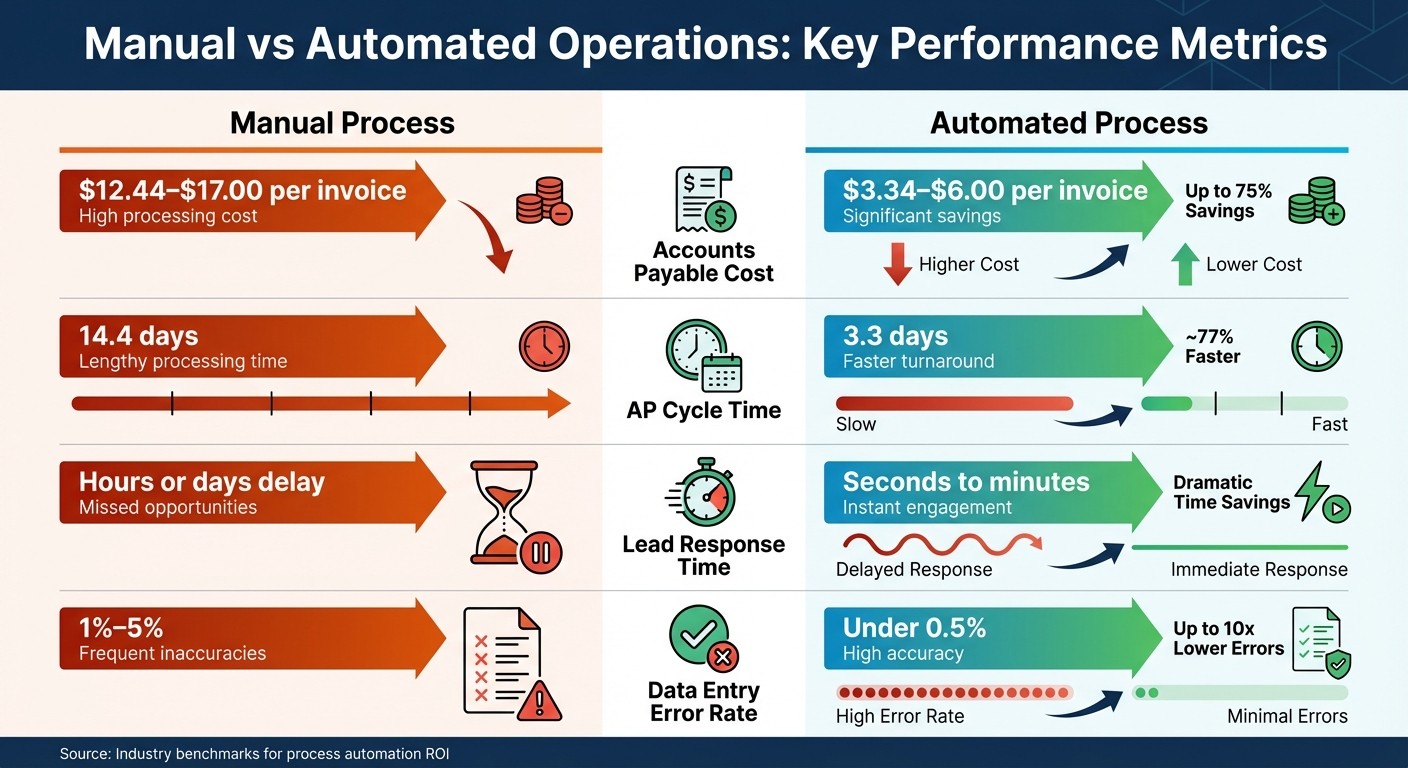
Manual vs Automated Operations: Cost and Performance Comparison
Start by pinpointing the processes that deliver the greatest return with minimal effort.
How to Rank Your Automation Options
Focus on tasks that happen often, follow predictable rules, and take up a lot of time.
Thomas Davenport, a Professor at Harvard Business School, sums it up well:
"The highest-return automation targets are those that are high-frequency, fully consistent, and low on required judgment."
To evaluate your options, rate each process on four factors: Time Impact, Error Impact, Implementation Ease, and Strategic Value. Use a scale of 1–5 for each, then multiply the scores to calculate a Priority Score. Processes scoring over 300 are strong candidates for automation.
Here’s an example of the potential time savings: A daily task that takes just 5 minutes but is repeated 100 times can free up over 3 hours of productive time each day. Compare that to a monthly 5-minute task, which adds up to only about 1 hour annually - likely not worth automating.
Consider the practical benefits with these metrics:
Metric | Manual Process | Automated Process |
|---|---|---|
Accounts Payable Cost | $12.44–$17.00 per invoice | $3.34–$6.00 per invoice |
AP Cycle Time | 14.4 days | 3.3 days |
Lead Response Time | Hours or days delay | Seconds to minutes |
Data Entry Error Rate | 1%–5% | Under 0.5% |
However, automation isn’t a magic fix for inefficient processes. As Bill Gates famously said:
"The first rule of any technology used in a business is that automation applied to an efficient operation will magnify the efficiency. The second is that automation applied to an inefficient operation will magnify the inefficiency."
If your current workflow is riddled with workarounds or inconsistencies, take the time to refine it before automating.
Best Processes to Automate
Start with tasks that are rule-based and repetitive, such as transferring data between systems, sending notifications, or creating reports.
Take the Mayo Clinic as an example. In 2020, they used Microsoft Power Automate to streamline appointment confirmations and insurance pre-authorizations. Over 18 months, they processed 2.4 million transactions automatically, saving 84,000 staff hours annually. With an investment of $180,000, they recouped over $3.2 million in staff time value - an 18:1 return.
Another success story comes from the City of Los Angeles. In 2019, they automated their business licensing department. By connecting data workflows across five departments, they slashed application processing times from 45 days to just 6 days and eliminated 94% of their backlog within six months.
Timing is another crucial factor. For instance, leads contacted within five minutes of submitting a form are 21 times more likely to convert than those contacted after 30 minutes. Automation ensures these critical actions happen instantly, every time.
Some common tasks ripe for automation include:
Approval requests that bounce between emails and spreadsheets
Syncing customer data across platforms
Tracking and managing support tickets
Generating recurring performance reports
If your team is bogged down by manual data entry or constantly switching between tools to complete a task, you’ve likely identified a prime candidate for automation.
Once you’ve zeroed in on these high-value processes, you’re ready to move forward. The next step? Building your first automated workflow. Let’s get started!
Step 3: Build Your First Automated Workflow with Rivulo
Now that you've pinpointed the processes you want to automate, it's time to dive in and create your first workflow. The best part? You don’t need any coding skills. Start by defining specific outcomes that will help you measure how well your automation performs.
Set Clear Goals for Your Automation
Once you've identified tasks to automate, focus on setting clear, measurable goals for your workflow. A vague objective like "save time" won't give you much to work with. Instead, aim for something you can track, like reducing time spent on a specific task by 50%.
For context, operations teams often lose over 10 hours a week to repetitive manual tasks. To understand the cost of your current process, calculate it using this formula: multiply the time spent per task by how often it happens weekly, the hourly cost, and 52 weeks. This calculation gives you a baseline to compare against once your automation is live.
Start with what Rivulo refers to as "firefighting" tasks - those repetitive, time-consuming jobs that don’t require complex decision-making. For tasks involving client interactions, try an "AI first draft + human approval" model. This keeps quality in check while still saving a ton of time.
As Mike Miner, Co-founder & CEO of Rivulo, puts it:
Our goal is to help the people who spend their days firefighting get to a place where the repetitive work just gets done, without them having to think about it.
Create Workflows Using Rivulo
Rivulo simplifies the process of building automation. Forget complicated rule-based systems or clunky drag-and-drop interfaces. Instead, perform the task manually, and Rivulo’s AI will observe your actions. Then, through a plain-language conversation, it converts those actions into an automated workflow.
For example, you could say: "When a new lead fills out the contact form, pull their details into our CRM, tag them based on company size, and send a personalized email within 5 minutes." Rivulo handles the technical side, translating this into an automated process.
Because Rivulo works directly in your browser, it can even automate tasks in older systems or legacy tools that don’t have modern APIs. If it’s something you can do in a browser, Rivulo can take care of it.
You’ll have full control over your workflows before they go live - review, tweak, or disable them as needed. Plus, real-time logs keep you informed about workflow activity, offering complete transparency. Automation adoption is growing fast, with the percentage of companies using it in core processes projected to jump from 60% in 2024 to 85% by 2029. Rivulo’s approach also speeds up build cycles by as much as 90% compared to traditional methods.
When designing your workflow, think in terms of three layers: Intake (how data enters, like through forms or emails), AI (the system’s decision-making, summarizing, or classifying), and Action (where the processed data goes, like your CRM or database). This structure keeps everything organized and easier to troubleshoot later.
Don’t forget to include fallback paths. If the automation hits a snag or can’t complete a task, it should redirect the work to a person instead of failing silently. Also, be mindful of sensitive data - like personal information or credentials - and define what should or shouldn’t be processed. Make sure every automated trigger has a clear next step and an assigned owner.
For inspiration, consider MEDITECH. In 2026, they used AI-driven spreadsheet and workflow automation to free up 7 hours of work time per employee each week. Similarly, Globe Telecom reported saving 3 to 4 hours weekly per employee. These successes came from starting small, testing thoroughly, and scaling gradually - exactly the approach you’ll follow next.
Step 4: Test and Refine Your Automated Workflows
Once your workflow is built, it’s time to test it thoroughly under real-world conditions. Catching bugs early can save you significant time - fixing a production issue might take over 6 hours, compared to just 45 minutes during development.
Run Tests with Actual Data
Start by testing each workflow step to ensure data is mapped correctly and triggers activate as expected. Then, perform an end-to-end test to confirm that the entire data flow works seamlessly.
Real-world data is rarely perfect. You’ll encounter issues like empty fields, special characters, API timeouts, and malformed inputs. To prepare for this, test edge cases deliberately. Include scenarios with null values, empty strings, maximum and minimum values, zero amounts, and even negative numbers if calculations are involved. This proactive approach helps identify potential problems before they disrupt your team.
Whenever possible, use recent real data instead of generic samples. If your test creates live records - like a Slack message or a database entry - delete them promptly to avoid confusing your team. For safer testing, consider using a staging environment or a dedicated test account. This keeps test data from interfering with your production systems.
Keep an eye on workflow logs during testing. Tools like Rivulo offer real-time logging to help you track execution events, input data, and decision points. Charity Majors, Co-founder of Honeycomb, emphasizes the importance of visibility:
You can't fix what you can't see. Observability is not a luxury - it's the minimum viable property of any system you plan to keep running.
While testing, monitor key metrics such as execution count, success rate, average duration, and error rate. If more than 10% of workflow runs require manual intervention, revisit and refine the logic. Once your workflow goes live, closely monitor the first few executions to ensure everything works as expected.
Get Input from Your Team
After technical testing, involve your team to ensure the workflow is practical and user-friendly. A good way to assess this is through "The Newcomer Test": if someone unfamiliar with the automation can understand its logic and purpose without much explanation, you’ve done a good job.
Before rolling it out to everyone, test the automation with a small group. Compare its performance against your manual process, focusing on metrics like cycle time and error rates. For instance, Remote, a global HR platform, saved around $500,000 in hiring costs by using automated workflows to handle over 25% of IT help desk tickets. Similarly, Alma reduced its support ticket volume by 45% after implementing more than 180 automated workflows.
Ensure that automated notifications are useful, not overwhelming. Alerts should prompt action, not create confusion or flood inboxes unnecessarily. For sensitive tasks or client-facing outputs, include mandatory human review steps to maintain quality before completing the automation.
Document each workflow’s creator and maintainer, and use clear naming conventions like [Category] - [Purpose] - [Trigger] for easy identification. Schedule regular reviews - quarterly or annually - to determine which workflows need updates, which are failing edge cases, and which are no longer relevant.
Martin Fowler’s advice applies here:
Any fool can write code that a computer can understand. Good programmers write code that humans can understand.
The same principle holds for automation. Design workflows that your team can easily maintain and improve, even if they weren’t involved in creating them. By combining rigorous testing with team feedback, your automated workflows will operate smoothly and remain effective over time.
Step 5: Measure Results and Expand Automation
Once your workflows are running smoothly, it’s time to ensure they’re delivering real value and identify areas where automation can further streamline operations. The key here is tracking the right metrics - without them, you might just be speeding up inefficiencies instead of saving time.
Track Your Automation Metrics
Focus on three metric categories: Operations (success rate and execution time), Financial (ROI), and Performance (business impact). For operations, aim for a workflow success rate above 99% and keep an eye on average execution times to detect bottlenecks. To calculate ROI, multiply the number of workflow runs by the minutes saved per manual task.
The most impactful metric, however, is total time saved. Take this example: In January 2026, Rivulo documented a case study where a 12-person partner agency automated five key processes - meeting recaps, reporting narration, ticket triage, status updates, and QA rework. The result? They saved 10, 9, 7, 6, and 8 hours per week respectively, adding up to a total of 40 hours saved weekly. Tracking metrics like total time saved provides a clearer picture of efficiency improvements than simply counting workflow executions. These numbers don’t just highlight efficiency gains - they also address the manual bottlenecks you’ve worked to eliminate.
Rivulo's analytics can help you monitor execution counts, success rates, and error rates. If manual intervention exceeds 10%, it’s a sign that your logic needs refining. A centralized failure log is a great tool for identifying recurring issues. As Administrate puts it:
Metrics are the hard evidence that your systems are actually delivering value, saving money, and running like they should. – Administrate
When your metrics confirm that your automation is performing as expected, you’ll be ready to expand these systems across more of your organization.
Roll Out Automation to Other Teams
Once you’ve validated your initial workflows, use the metrics you’ve gathered to identify similar automation opportunities in other departments. Start with the 7-Question Automation Audit: Is the task repetitive (happening more than twice weekly)? Is the process well-defined? Does it involve multiple systems? What’s the time cost? Pair this audit with the ROI formula - (Hours saved per month × Hourly rate) minus the monthly tool cost - to prioritize high-value processes. If an automation pays for itself within a month, it’s a clear candidate for implementation.
To scale efficiently, build reusable components for tasks that appear across multiple workflows, like an "Enrich Contact" module. This saves time by eliminating the need to recreate the same logic repeatedly. Include error handling with Slack notifications for failed workflows to avoid silent failures. Document each automation with a one-page guide outlining its purpose, schedule, and failure-handling instructions. This ensures your team isn’t reliant on any single person for troubleshooting.
As your automation library grows, schedule regular audits to review which workflows need updates or should be retired. By scaling based on solid metrics, you can turn isolated successes into organization-wide efficiency improvements.
Conclusion: Move Your Operations Forward with Automation
Switching from spreadsheets to automated workflows isn’t about replacing your team - it’s about freeing them from repetitive, time-consuming tasks so they can focus on work that drives real progress. Start by mapping out your current workflows, identifying bottlenecks, and setting clear goals for automation. Test your process with real data, gather team feedback, and measure the results before expanding automation to other areas.
As mentioned earlier, moving away from manual processes can lead to major time and cost savings. Automation eliminates inefficiencies like manual copy-pasting, juggling multiple platform notifications, and chasing approvals - what’s often referred to as the "handoff tax". Automated solutions have been shown to cut manual workloads by as much as 80%.
Take Rivulo, for example. Designed for non-technical users, it runs directly in the browser, making it possible to automate legacy systems without modern APIs and connect systems that were previously incompatible. As Rivulo explains:
Your operations team knows exactly which tasks should be automated - they just shouldn't need engineers to make it happen.
The financial benefits of automation are hard to ignore. In January 2026, Alma implemented over 180 automated workflows, cutting internal ticket volume by 45% and saving $50,000 on third-party tools. Similarly, Remote's IT team automated more than 25% of common support tickets, saving hundreds of hours each month and approximately $500,000 in hiring costs. These examples show how automation shifts the focus from routine maintenance tasks to strategic improvements.
Start small. Choose one high-frequency handoff, track its results, and then scale your efforts. With consistent metrics and efficient workflows, your operations team will be better equipped to support strategic growth across the organization.
FAQs
How do I choose which spreadsheet process to automate first?
Automating repetitive, error-prone tasks - like data updates or generating reports - can save time and reduce mistakes. Start with high-impact activities, such as transferring data between tools or managing approval workflows. Pick one process to automate initially to showcase its effectiveness. Once you see the results, you can expand automation efforts step by step, delivering clear benefits and quick wins for your team.
What should I automate before fixing a messy workflow?
Start by zeroing in on the task that eats up the most time and feels the most repetitive. Instead of overhauling everything at once, tackle this major bottleneck first - it sets the stage for smoother improvements down the line. For example, if you're stuck managing endless manual spreadsheets, transitioning to automation doesn’t have to happen overnight. Start small: automate a single core process within a few weeks. This way, you can demonstrate its impact and build confidence before expanding automation further.
How do I prove automation ROI to leadership?
When presenting the ROI of automation to leadership, it's crucial to focus on metrics that resonate. Start by showcasing time savings, error reduction, and scalability. For example, quantify how much manual effort is reduced through automation, how accuracy is improved, and how the business can grow without a matching increase in costs.
Don't overlook the less obvious perks. Automation often leads to faster cycle times and allows employees to shift their focus to more strategic tasks, adding even more value. By presenting these measurable benefits, you'll provide solid evidence that makes it easier to gain leadership buy-in for your automation projects.
Related Blog Posts

Hand over your first workflow this week
Hand Rivulo your most tedious workflow or your team’s most-asked question. Either way, it starts by understanding how your business works, and then it takes care of the rest.