
Internal Knowledgebase vs. Shared Drive: Why Your Team Can Never Find What They Need

Kathy Prince

Your team’s productivity might be suffering more than you realize. Employees spend up to 20% of their workweek searching for information, costing companies over $5,000 per employee annually. The root of the problem? Inefficient tools like shared drives and outdated knowledge management systems.
Here’s the deal:
Shared drives are great for basic file storage but often lead to chaos as teams grow. Their rigid folder structures, limited search capabilities, and lack of version control make finding documents a time-consuming task.
Internal knowledgebases, on the other hand, are built for quick and efficient information retrieval. They use tagging, AI-powered search, and centralized ownership to keep content organized, accessible, and up-to-date.
Key takeaway: If your team is wasting hours searching for files or struggling with outdated documents, it’s time to rethink your approach. A knowledgebase can save time, reduce frustration, and improve overall efficiency.
Quick Comparison:
Feature | Internal Knowledgebase | Shared Drive |
|---|---|---|
Purpose | Information access and knowledge management | File storage and sharing |
Organization | Tags, categories, and metadata | Nested folder structure |
Search | AI-powered, context-aware | Basic keyword matching |
Scalability | Handles thousands of documents easily | Becomes cluttered with growth |
Version Control | Clear ownership and updates | Multiple outdated file versions |
Time Savings | Cuts search time by up to 35% | Employees lose 20–30% of their time |
The choice depends on your team’s needs, but if efficiency and scalability matter, a knowledgebase is the smarter option.
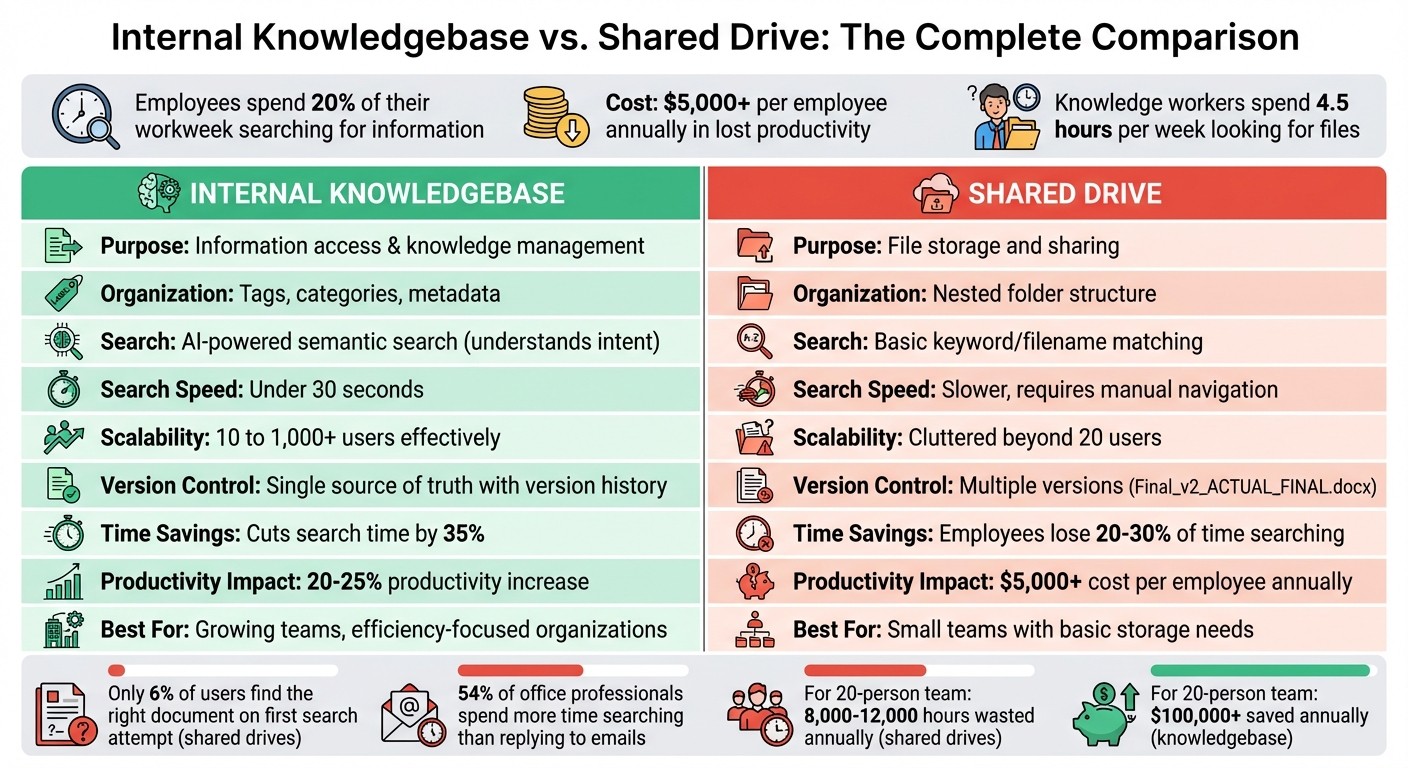
Internal Knowledgebase vs Shared Drive Comparison Chart
This AI Turns Google Drive Into a Live Knowledge Base!
1. Internal Knowledgebase
An internal knowledgebase allows teams to find answers in seconds rather than hours. Unlike a shared drive that merely stores files, a knowledgebase organizes information into structured categories, tags, and interconnected pages, making it easy to locate what you need. Think of it as the difference between a neatly organized library with a catalog system and a chaotic warehouse where boxes are randomly stacked.
Organization and Structure
The power of a knowledgebase lies in its thoughtful organization. Instead of locking a document into a single folder, it can be tagged across multiple categories - like "Legal", "Client Onboarding", and "Q1 Projects" - so it appears wherever it’s relevant. Standardized templates for frequently used documents, such as SOPs, runbooks, and policies, help maintain consistency and make it easier to create and update content over time.
Search Functionality
Modern knowledgebases feature AI-driven semantic search, which understands the intent behind a query rather than just matching keywords. For example, if someone searches, "How do I process a refund?" the system identifies the intent and pulls up the related refund policy, even if the exact phrase isn’t in the document title. As one industry expert explains, "Instead of keyword hunting across dozens of apps, AI-powered enterprise search understands context and delivers answers from across your entire tech stack". This advanced search capability can cut search time by up to 35%. Considering employees spend an average of 1.8 hours daily searching for information, the time saved can lead to a noticeable productivity boost.
Collaboration and Maintenance
A knowledgebase isn’t just a storage system - it ensures information stays up-to-date and relevant. Advanced tools flag content that hasn’t been updated in six months and identify gaps by tracking failed searches. Assigning ownership to specific documents creates accountability: when processes change, the designated owner updates the content in one central location, ensuring everyone has access to the latest version. This centralized approach eliminates the confusion caused by outdated or misplaced information. Additionally, integrations with platforms like Slack and Microsoft Teams allow employees to search for and retrieve answers without leaving their workflow.
Scalability and Efficiency
As your team grows from 10 to 100 people, your knowledgebase can expand effortlessly. Systems designed to manage 50 documents can handle 5,000 just as efficiently, thanks to robust search and tagging features. Companies with strong knowledge management practices report productivity increases of 20–25%. For a 20-person team, this efficiency gain could save over $100,000 annually in recovered time. Unlike shared drives, a well-structured knowledgebase scales without descending into chaos. Up next, we’ll explore how shared drives compare when it comes to managing information effectively.
2. Shared Drive
Shared drives were designed with a simple goal in mind: storing and sharing files. While they handle this basic function well, they fall short when used as documentation systems. The main issue lies in their reliance on a hierarchical folder structure, which forces every document into just one location - even when it logically fits in multiple places.
Organization and Structure
The folder structure in shared drives can quickly turn into a confusing maze for most users. For example, where should a client contract go? Should it be saved under the client’s name, the project type, or the date? Shared drives force you to pick just one, even though the document might logically belong in all three. This often leads to endless clicking through nested subfolders like Marketing → Sales Collateral → Case Studies → Retail → 2018, only to hit a dead end and start over.
"The folder was invented in the 1980s. We're still using the same organizational paradigm 40 years later, even though everything else about how we work has changed." – The Drive AI
Shared drives can handle around 100 files without much trouble. But as the number of files grows - say, to 1,000 - users start losing track. By the time you hit 10,000 files, the entire system tends to collapse. This often leads to the creation of "Misc" folders or other chaotic workarounds, making it nearly impossible to find what you need. For a 20-person team, this kind of disorganization can waste between 8,000 and 12,000 hours each year. That’s the equivalent of 4 to 6 full-time employees spending all their time just searching for files.
Search Functionality
Search capabilities in shared drives are limited to file names and simple text matches. If you don’t remember the exact title or location of a document, it might as well be lost. Unlike more advanced systems that understand intent, shared drive search depends on precise keywords. In fact, only 6% of users in typical enterprise environments find the right document on their first search attempt.
"Shared drives don't come with [metadata] features, which can make it difficult to recover a document of interest. The indexing functionality of these drives is limited." – Mike Lynett, MES Hybrid Document Systems
The lack of tags or custom metadata makes it difficult to filter documents by specific criteria. Poorly named files often lead to version confusion, where multiple copies of a document exist in different folders, leaving teams unsure which one is the most up-to-date.
Collaboration and Maintenance
Shared drives also struggle with version control and ownership clarity. They often lack an audit trail, so there’s no way to track who made changes or when. This contributes to "content rot", where outdated files are mistakenly used because the latest version went unnoticed. Without clear folder ownership, old files pile up, and reorganizing becomes more challenging as the volume of files grows. Teams are then forced to adopt inefficient workarounds to manage the chaos.
Scalability and Efficiency
As teams grow, shared drives tend to spiral out of control. For instance, a 50-person team with poorly organized files could waste about 2,500 hours each year just searching for documents. And it’s not just a small problem - 54% of U.S. office professionals say they spend more time searching for documents than replying to emails. Knowledge workers, on average, spend 4.5 hours per week looking for files, often failing to find what they need half the time. When information isn’t easy to locate, productivity takes a serious hit.
Next, we’ll weigh the pros and cons of these systems to help you determine the best fit for your team.
Pros and Cons
Here's a breakdown comparing internal knowledgebases with shared drives:
Feature | Internal Knowledgebase | Shared Drive |
|---|---|---|
Primary Purpose | Quick information access and knowledge management | File storage and sharing |
Organization | Uses structured categories, tags, and metadata | Relies on nested folders |
Search Type | AI-powered semantic search that understands intent and synonyms | Basic keyword or file-name matching |
Search Speed | Fast (usually under 30 seconds) | Slower, requiring manual navigation |
Scalability | Handles 10 to 1,000+ users effectively | Becomes cluttered and hard to navigate with more than 20 users |
Content Ownership | Assigns clear ownership for accountability | Ownership often limited to the file creator, leading to outdated content |
Version Control | Provides a single source of truth with version history | Often results in confusion with files like "Final_v2_ACTUAL_FINAL.docx" |
Collaboration | Supports real-time editing, comments, and workflows | Limited; version conflicts arise from multiple file copies |
Maintenance | Includes analytics to track and manage stale content | Maintenance is manual and frequently overlooked |
Onboarding Speed | Quick due to a search-first experience | Slower, requiring users to learn folder structures |
Time Savings | Cuts search time by up to 35% | Employees lose 20–30% of their time searching for files |
Cost Impact | Boosts productivity by 20–25% across the organization | Poor organization can cost $5,000+ per employee annually in lost productivity |
Shared drives were created mainly for file storage, making them suitable for small teams with limited needs. However, as teams grow, these systems often become chaotic and inefficient. In contrast, internal knowledgebases are purpose-built for managing and retrieving information quickly, even when dealing with thousands of documents.
The choice depends on your team’s needs and scale. For smaller groups, shared drives might work fine. But for larger teams or those aiming for efficiency, a knowledgebase offers better tools for organization, collaboration, and long-term productivity.
"The choice between a knowledge base, wiki, and shared drive is not about which tool is 'best' - it is about which tool fits your team's needs." – Docuscry
Conclusion
Shared drives and internal knowledgebases serve very different purposes. Shared drives work well for basic file storage and small teams but can become disorganized and inefficient as organizations grow. On the other hand, internal knowledgebases are built for quick access to information, using AI-driven search tools, structured organization, and clear ownership to ensure content stays accurate and easy to find.
These differences highlight why it's worth reconsidering how your team manages information. If your employees are spending hours digging through nested folders or trying to decode unclear file names, it might be time for a change. In fact, studies show that workers in shared drive environments can spend 20–30% of their time searching for files, which adds up to over $5,000 per employee each year. By implementing an internal knowledgebase, you could cut search times by up to 35% and increase team productivity by 20–25%.
Integrating a knowledgebase with automation can tackle these challenges head-on. By centralizing key resources - like onboarding materials, SOPs, and runbooks - into a structured system with clear ownership and seamless integration with other tools, operational teams can work much more efficiently.
That’s where Rivulo comes in. Rivulo helps automate repetitive tasks, giving your team more time to focus on keeping documentation accurate and accessible. With the right combination of a well-organized knowledgebase and smart automation, your team can shift from wasting hours searching for information to accomplishing tasks in just minutes.
FAQs
When should a team switch from a shared drive to a knowledgebase?
When shared drives start to feel chaotic and it's a struggle to locate information quickly, it’s probably time to consider moving to a knowledge base. Shared drives often lack proper organization, which can lead to wasted time and a dip in productivity.
A knowledge base provides a more structured solution. It centralizes content, making it easy to search for information, offers role-based access to ensure the right people see the right content, and includes analytics to track usage. This setup is perfect for handling increasing amounts of complex information while boosting both efficiency and accessibility for the team.
How do we migrate shared-drive docs into a knowledgebase without chaos?
To ensure a smooth migration of shared-drive documents, begin by organizing and categorizing files into a clear structure. Take the time to remove outdated or duplicate files, so only essential information makes the transition. When transferring files, do so systematically, adding tags and metadata to improve searchability in the new system.
Keep your team in the loop by sharing the migration plan and offering training on how to navigate the updated system. Finally, set up regular maintenance routines to keep the knowledgebase tidy and up-to-date.
Who should own and maintain knowledgebase content long-term?
Long-term responsibility for knowledgebase content should rest with subject matter experts or designated team members. These individuals play a key role in keeping the content accurate, up-to-date, and relevant. By doing so, they help avoid gaps in knowledge and ensure the information remains practical and reliable over time.
Related Blog Posts

Hand over your first workflow this week
Hand Rivulo your most tedious workflow or your team’s most-asked question. Either way, it starts by understanding how your business works, and then it takes care of the rest.